叠加层
本指南:在地图上绘制 折线(Polyline)、多边形(Polygon) 与 纹理四边形(TexturedQuad) 等矢量叠加,并通过 TSS 动态变量调整样式。
功能介绍
ShapesController 与 Shape 用于在地图上绘制 API 馈送的矢量叠加(API-fed shapes):折线、多边形、纹理四边形。常见用法:
- 续航圈 / 等时圈:用
Polygon 表达 EV 续航范围、配合 TSS 动态调整颜色和透明度。
- 轨迹回放 / 自定义路径:用
Polyline 绘制非导航类的轨迹线。
- 地理围栏 / 兴趣区域:用
Polygon 高亮特定区域,配合手势事件交互。
- 路面贴图 / 自定义图块:用
TexturedQuad 在地理坐标上贴一张图片(如停车位平面图、AR 标记)。
样式可在 TSS 中以 $variable 方式定义,运行时通过 ShapesController.setViewValue 动态修改。
获取入口:
| val shapesController = mapView.getShapesController() ?: return
|
核心接口一览
| 分类 |
接口 / 类 |
说明 |
| 形状定义 |
Shape(type, attributes, coordinates) |
单个形状(折线 / 多边形 / 纹理四边形) |
| 形状定义 |
Shape.Type |
形状类型枚举 |
| 形状定义 |
Attributes.Builder |
形状样式(颜色、线宽、纹理、TSS 变量等) |
| 形状定义 |
Shape.Collection.Builder |
把多个相关形状组合成一组提交 |
| 形状管理 |
ShapesController.add(collection) |
添加形状集合 |
| 形状管理 |
ShapesController.remove(collectionId) |
移除形状集合 |
| 样式调整 |
ShapesController.setAlphaValue(collectionId, alpha) |
调整集合透明度 |
| 样式调整 |
ShapesController.setViewValue(name, value) |
动态写入 TSS 变量(Float / String / @ColorInt) |
接口详细说明
1. Shape.Type — 三种叠加类型
| 值 |
适用场景 |
关键属性 |
Polyline |
折线 / 轨迹 / 自定义路径 |
lineWidth、color、patterned |
Polygon |
多边形填充 / 等时圈 / 地理围栏 |
color(填充色)、TSS 变量 |
TexturedQuad |
纹理四边形 / 路面贴图 |
clientTexture 或 textureResourceName、textureResourceWidth/Height、stretchFactor |
同一个 Shape.Collection 可包含不同类型形状;同一形状的 coordinates 按绘制顺序传入(Polygon 不需要首尾闭合,引擎会自动闭合)。
2. Attributes — 形状样式属性
Attributes 由 Attributes.Builder 构造,包含所有可配置的渲染参数:
| Builder 方法 |
参数类型 |
默认值 |
适用类型 |
说明 |
setShapeStyle(name) |
String? |
null |
全部 |
TSS 中定义的样式名(高级用法) |
setColor(color) |
@ColorInt Int |
-1(白色) |
Polyline / Polygon |
线条 / 填充颜色 |
setLineWidth(width) |
Float |
1.0f |
Polyline |
线宽(像素) |
setPatterned(enable) |
Boolean |
false |
Polyline |
是否使用虚线 / 纹理重复 |
setClientTexture(texture) |
ClientTexture? |
null |
TexturedQuad |
来自 Bitmap / ByteArray 的运行时纹理 |
setTextureResourceName(name) |
String? |
null |
TexturedQuad |
TSS 中预定义的纹理资源名(与 setClientTexture 互斥) |
setTextureResourceWidth(w) |
Int |
0 |
TexturedQuad |
纹理宽度 |
setTextureResourceHeight(h) |
Int |
0 |
TexturedQuad |
纹理高度 |
setStretchFactor(factor) |
Float |
0f |
TexturedQuad / Polyline |
纹理拉伸因子 |
setUseLinearTextureFiltering(use) |
Boolean |
false |
TexturedQuad |
true 启用线性过滤,false 使用最近邻 |
setFloat(key, value) |
String, Float |
— |
全部 |
TSS 浮点变量(shape 级,区别于 setViewValue 的全局级) |
setString(key, value) |
String, String |
— |
全部 |
TSS 字符串变量 |
setColor(key, value) |
String, @ColorInt Int |
— |
全部 |
TSS 颜色变量 |
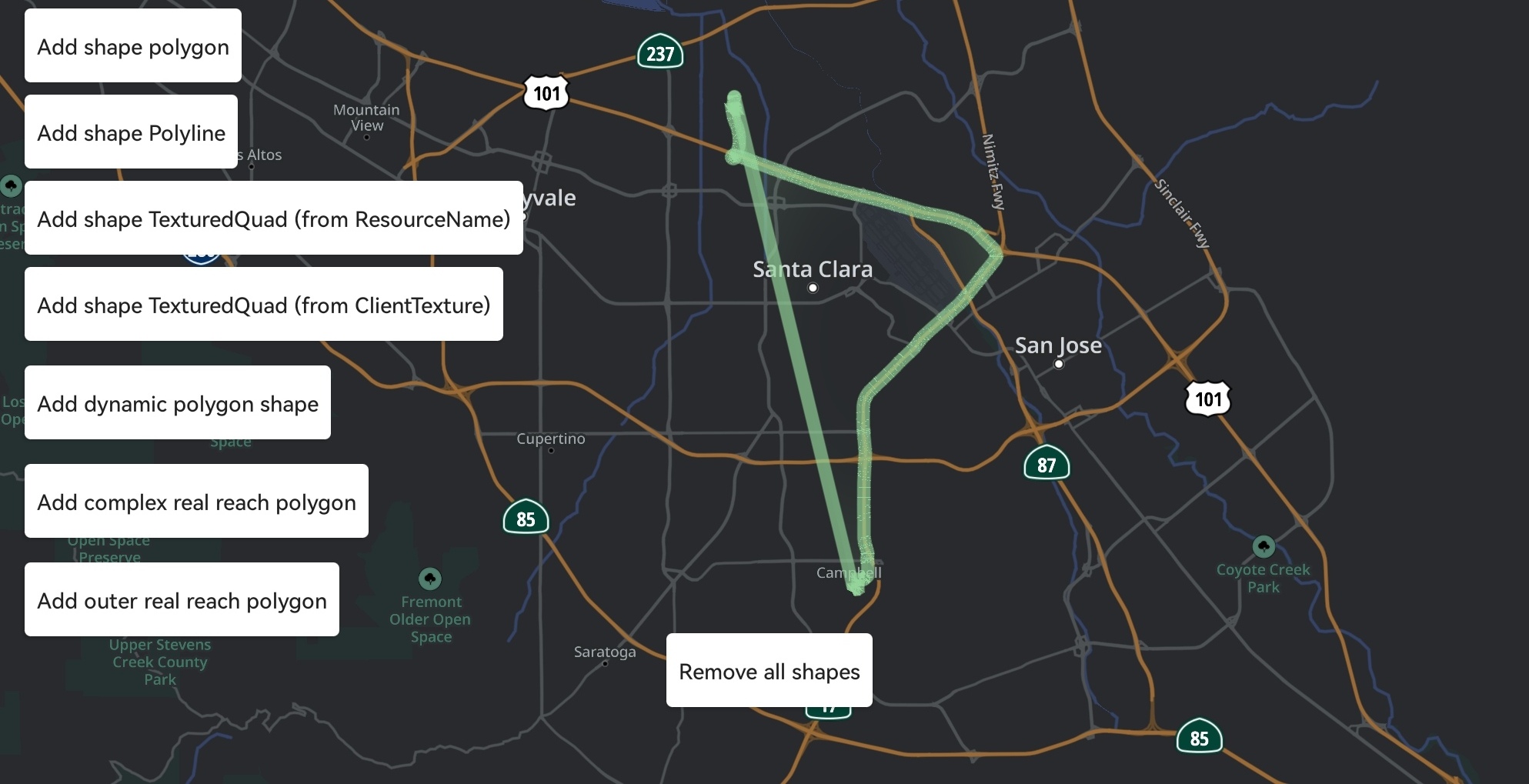
3. 绘制 Polyline(折线)
适用于轨迹回放、车队历史路径、自定义参考线等场景。coordinates 是按顺序连接的折线点。
效果示意:
| fun Shape(
type: Shape.Type.Polyline,
attributes: Attributes,
coordinates: List<LatLon>
)
|
| 参数 |
类型 |
说明 |
type |
Shape.Type.Polyline |
折线类型 |
attributes |
Attributes |
推荐至少配置 setColor 与 setLineWidth |
coordinates |
List<LatLon> |
折线顶点(按绘制顺序),至少 2 个 |
示例代码(绘制一条蓝色历史轨迹):
1
2
3
4
5
6
7
8
9
10
11
12
13
14
15
16
17
18
19
20
21
22
23
24
25
26
27
28
29
30
31
32
33
34
35
36 | val shapesController = mapView.getShapesController() ?: return
// 1) 折线顶点(轨迹采样点)
val trackPoints: List<LatLon> = listOf(
LatLon(37.7749, -122.4194),
LatLon(37.7755, -122.4180),
LatLon(37.7762, -122.4165),
LatLon(37.7771, -122.4150),
LatLon(37.7784, -122.4138),
)
// 2) 样式属性:蓝色 6 像素粗
val attrs = Attributes.Builder()
.setColor(Color.parseColor("#FF1E88E5"))
.setLineWidth(6f)
.build()
// 3) 构造 Shape
val polyline = Shape(
type = Shape.Type.Polyline,
attributes = attrs,
coordinates = trackPoints,
)
// 4) 加入 Collection 并提交
val collection = Shape.Collection.Builder()
.addShape(polyline)
.build()
val polylineId: ShapesController.Id = shapesController.add(collection) ?: run {
Log.w(TAG, "add polyline failed")
return
}
// 5) 不需要时移除
// shapesController.remove(polylineId)
|
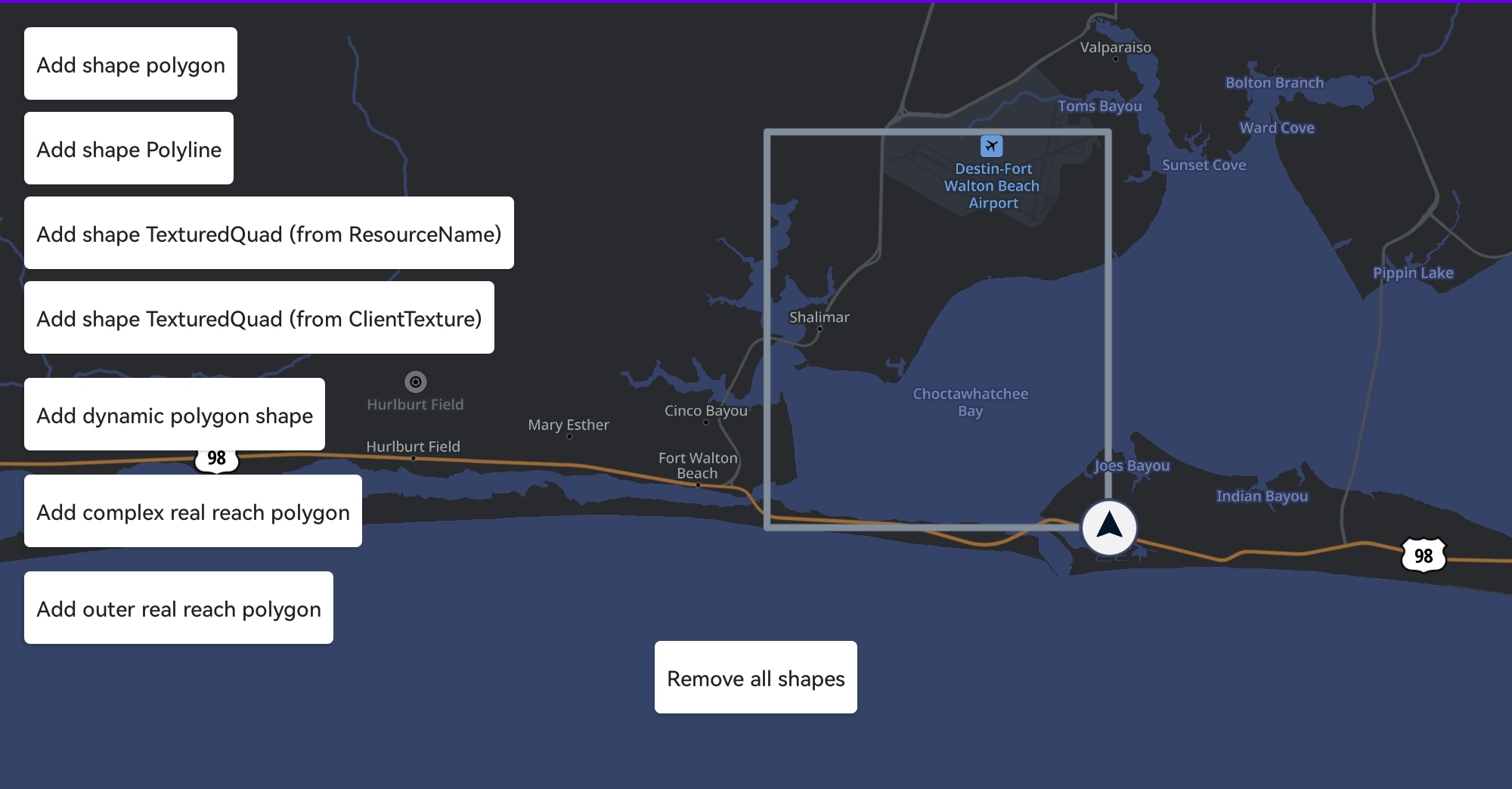
4. 绘制 Polygon(多边形)
适用于 EV 续航圈、等时圈、地理围栏等区域型可视化。首尾点无需重复,引擎会自动闭合。建议至少 3 个顶点。
效果示意:
| fun Shape(
type: Shape.Type.Polygon,
attributes: Attributes,
coordinates: List<LatLon>
)
|
| 参数 |
类型 |
说明 |
type |
Shape.Type.Polygon |
多边形类型 |
attributes |
Attributes |
至少配置 setColor 作为填充色 |
coordinates |
List<LatLon> |
多边形顶点(≥ 3 个),按顺时针或逆时针顺序传入 |
示例代码(EV 续航圈,配合 TSS 变量动态调色):
1
2
3
4
5
6
7
8
9
10
11
12
13
14
15
16
17
18
19
20
21
22
23
24
25
26
27 | val shapesController = mapView.getShapesController() ?: return
// 1) 根据剩余电量构造续航边界点
val rangePolygon: List<LatLon> = ev.computeRangePolygon(vehicleLocation, batteryPct)
// 2) 样式:半透明绿色填充
val attrs = Attributes.Builder()
.setColor(Color.argb(0x66, 0x4C, 0xAF, 0x50))
.build()
// 3) 构造并提交
val polygon = Shape(
type = Shape.Type.Polygon,
attributes = attrs,
coordinates = rangePolygon,
)
val collection = Shape.Collection.Builder()
.addShape(polygon)
.build()
val rangeId = shapesController.add(collection) ?: return
// 4) 根据电量状态实时调整 TSS 变量(需 TSS 中已定义 $overlay-color / $overlay-opacity)
shapesController.setViewValue("overlay-color", Color.parseColor("#FF4CAF50"))
shapesController.setViewValue("overlay-opacity", 0.35f)
// 5) 调整整体透明度(不依赖 TSS 变量)
shapesController.setAlphaValue(rangeId, 0.6f)
|
多个多边形(如续航圈 + 警告圈)可放入同一 Shape.Collection 一起提交,便于一次性 remove 或 setAlphaValue。
5. 绘制 TexturedQuad(纹理四边形)
把一张图片(PNG / Bitmap)贴到地图的指定四边形区域上,例如:停车场平面图、AR 标记、自定义路面贴图等。coordinates 需提供 四个顶点(左上、右上、右下、左下,或顺序保持一致)。
| fun Shape(
type: Shape.Type.TexturedQuad,
attributes: Attributes,
coordinates: List<LatLon>
)
|
| 参数 |
类型 |
说明 |
type |
Shape.Type.TexturedQuad |
纹理四边形 |
attributes |
Attributes |
必须提供 setClientTexture 或 setTextureResourceName |
coordinates |
List<LatLon> |
四个顶点,按相同顺序传入(推荐:左上 → 右上 → 右下 → 左下) |
示例代码(在停车场地理范围内贴一张平面图):
 1
 2
 3
 4
 5
 6
 7
 8
 9
10
11
12
13
14
15
16
17
18
19
20
21
22
23
24
25
26
27
28
29
30
31
32
33
34
35
36
37
38 | val shapesController = mapView.getShapesController() ?: return
// 1) 加载 Bitmap 并封装为 ClientTexture(要求为 RGBA PNG)
val bitmap = BitmapFactory.decodeResource(resources, R.drawable.parking_floorplan)
val texture = ClientTexture(
data = bitmap,
width = bitmap.width,
height = bitmap.height,
)
// 2) 四个角的地理坐标
val quad: List<LatLon> = listOf(
LatLon(37.7790, -122.4200), // 左上
LatLon(37.7790, -122.4180), // 右上
LatLon(37.7775, -122.4180), // 右下
LatLon(37.7775, -122.4200), // 左下
)
// 3) 样式:使用 ClientTexture,启用线性过滤让缩放更平滑
val attrs = Attributes.Builder()
.setClientTexture(texture)
.setUseLinearTextureFiltering(true)
.setStretchFactor(1.0f)
.build()
// 4) 提交
val quadShape = Shape(
type = Shape.Type.TexturedQuad,
attributes = attrs,
coordinates = quad,
)
val collection = Shape.Collection.Builder()
.addShape(quadShape)
.build()
val quadId = shapesController.add(collection) ?: return
// 5) 控制透明度(如车辆进入区域时降低底图遮挡)
shapesController.setAlphaValue(quadId, 0.7f)
|
如果纹理已经预置在 TSS 中(如静态资源 parking_pattern),可改用 setTextureResourceName("parking_pattern") + setTextureResourceWidth / setTextureResourceHeight,而不必每次都传 ClientTexture。
6. ShapesController.add — 添加形状集合
| fun add(
collection: Shape.Collection
)
|
| 参数 |
类型 |
说明 |
collection |
Shape.Collection |
一组要一起提交的形状;可包含不同 Type |
示例代码(一次提交多种形状):
| val collection = Shape.Collection.Builder()
.addShape(polyline)
.addShape(polygon)
.addShape(texturedQuad)
.build()
val collectionId = shapesController.add(collection) ?: return
|
7. ShapesController.remove — 移除形状集合
| fun remove(
collectionId: ShapesController.Id
)
|
| 参数 |
类型 |
说明 |
collectionId |
ShapesController.Id |
add 返回的集合 ID |
示例代码:
| shapesController.remove(collectionId)
|
如果同一集合中包含多个形状,remove 会一次性清除集合内全部形状;需要逐个控制时请将每个形状放入独立的集合。
8. ShapesController.setAlphaValue — 调整集合透明度
| fun setAlphaValue(
collectionId: ShapesController.Id,
alpha: Float
)
|
| 参数 |
类型 |
说明 |
collectionId |
ShapesController.Id |
要调整透明度的集合 ID |
alpha |
Float |
透明度,SDK 自动 clamp 到 0.0f ~ 1.0f |
示例代码(用 ValueAnimator 做淡入淡出):
| ValueAnimator.ofFloat(0f, 1f).apply {
duration = 400
addUpdateListener {
shapesController.setAlphaValue(collectionId, it.animatedValue as Float)
}
start()
}
|
9. ShapesController.setViewValue — 动态写入 TSS 变量
适用于在不重建形状的情况下,按业务状态动态改变叠加层的颜色 / 透明度等。文档注明该 API 主要面向 EV 续航外圈多边形 等场景。
重载一:Float
| fun setViewValue(name: String, value: Float)
|
| 参数 |
类型 |
说明 |
name |
String |
TSS 变量名(不带 $) |
value |
Float |
浮点值(如不透明度) |
重载二:String
| fun setViewValue(name: String, value: String)
|
| 参数 |
类型 |
说明 |
name |
String |
TSS 变量名 |
value |
String |
字符串值 |
重载三:颜色
| fun setViewValue(name: String, @ColorInt value: Int)
|
| 参数 |
类型 |
说明 |
name |
String |
TSS 变量名 |
value |
@ColorInt Int |
颜色值(ARGB) |
TSS 中变量定义示例:
| settings {
overlay-color: $overlay-color;
overlay-opacity: $overlay-opacity;
};
|
示例代码:
| // 颜色(ARGB int)
shapesController.setViewValue("overlay-color", Color.parseColor("#FF4CAF50"))
// 透明度(0.0 ~ 1.0)
shapesController.setViewValue("overlay-opacity", 0.35f)
// 字符串(例如样式 token)
shapesController.setViewValue("overlay-style", "danger")
|
注意事项
ShapesController 须在 MapView.onReady 之后获取与使用。add(collection) 失败时返回 null,必须判空。Polygon 至少 3 个顶点,TexturedQuad 必须 4 个顶点;点位顺序错误会导致形状被翻转或不可见。TexturedQuad 使用的图片需要 RGBA 格式(PNG 推荐);大图建议事先压缩。- TSS 中未定义对应变量时,
setViewValue 不会报错但也不会生效,调试时请确认 TSS 是否包含该 key。
- 与 Annotation 不同:Shape 面向矢量几何叠加;点状 POI / 自定义图标请参考 Annotation。
相关指南